Account and Settings
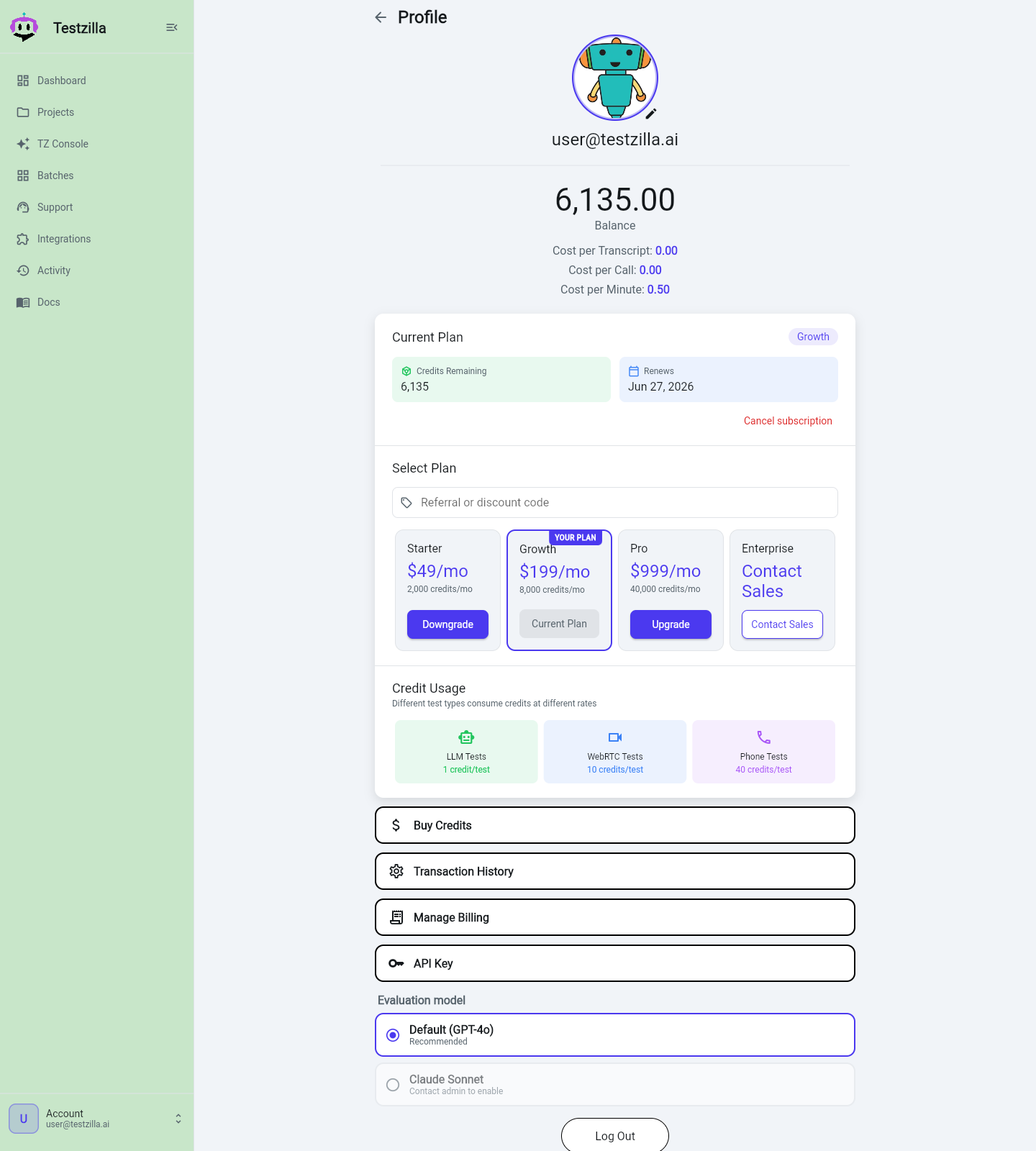
The Account page is where you manage your Testzilla account: your credit balance and plan, billing, your API key, and the Evaluation model that judges your tests. Open it from the Account entry at the bottom of the left nav in the web app.
What’s on the page
Section titled “What’s on the page”- Email and balance — your sign-in email and current credit balance.
- Plan and credits — your current subscription plan, credits remaining and renewal date, and options to upgrade, downgrade, or buy more credits.
- Billing — Transaction History and Manage Billing.
- API Key — your account API key for API and MCP access (see Authentication).
- Evaluation model — the model that decides each test’s pass/fail/uncertain verdict, covered below.
- Delete Account — permanently removes your account (your balance must be zero first).
Subscriptions and the run gate
Section titled “Subscriptions and the run gate”Running tests is subscribe-first: an active subscription is required before Testzilla will start a billable run. You can create projects, channels, and tests, and explore the app, without a plan — but the first run is gated.
When you try to run without an active subscription (or with your free credits used up), Testzilla shows a run-gate dialog rather than a dead-end error:
- Not subscribed — the dialog is titled “Subscribe to run tests” and leads with Choose a plan. Add-credits is not offered here; a subscription comes first.
- Subscribed but out of included credits — the dialog is titled “Top up or upgrade” and offers Upgrade plan or Top up credits (a one-off credit purchase).
Either way you can dismiss it with Not now. Over the API, the same block surfaces as HTTP 402 with the reason Active subscription required to run tests. Subscriptions are managed in the web app only — there is no API or MCP call to start, upgrade, or cancel one.
Evaluation model
Section titled “Evaluation model”Every test you run is judged by an LLM that reads the transcript and returns a verdict — pass, fail, or uncertain — against your test’s criteria. The Evaluation model setting controls which model does that judging for your account. It is a per-account choice and applies to all of your tests.
There are two options:
| Option | What it is |
|---|---|
| Default (GPT-4o) | The platform default evaluator. Recommended, and what every account uses unless you change it. |
| Claude Sonnet | Anthropic’s Claude Sonnet, run on AWS Bedrock in the EU region (Zero-Data-Retention-capable). An opt-in override for data-residency-sensitive customers. |
Pick Default (GPT-4o) unless you have a specific reason to switch. Changing the evaluation model does not change your tests, criteria, or how results are displayed — only which model produces the verdict.
Why choose Claude Sonnet (EU / Zero-Data-Retention)
Section titled “Why choose Claude Sonnet (EU / Zero-Data-Retention)”The Claude Sonnet option runs on AWS Bedrock in the EU region (eu-west-1) rather than a US-based API. Requests are routed within the EU (using EU cross-region inference profiles), and the deployment is configured to be Zero-Data-Retention-consistent: model-invocation logging is disabled in-region, so prompts and completions are not retained.
This is aimed at EU and regulated customers who need their evaluation traffic to stay in-region for data-residency and trust reasons. If your test transcripts may contain personal or sensitive data and you are subject to GDPR or similar requirements, the EU / Zero-Data-Retention path keeps that evaluation step inside the EU.
How to change it
Section titled “How to change it”- Open the Account page.
- Under Evaluation model, click the option you want — Default (GPT-4o) or Claude Sonnet.
- The choice saves immediately and applies to your subsequent test runs.
Switching back to Default (GPT-4o) at any time clears the override and returns you to the platform default.